

This is one of the most important tabs of the app. Here you record your buy and sell transactions, decide on which alert mode to use, and also get an overview over your transactions, as well as pending investments and profits taken.
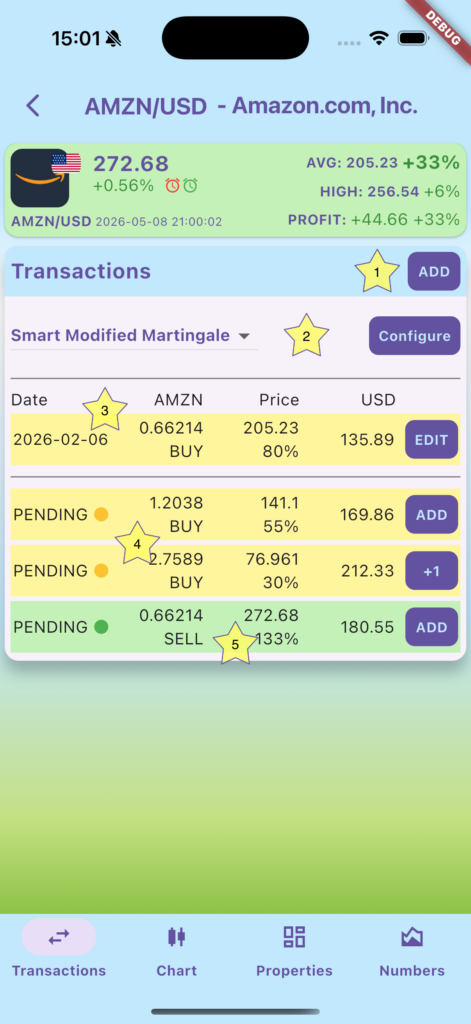
1) Add transaction: This is a generic button to enter the Transaction Screen, to record either a buy or sell transaction. You can see here that I have already recorded a buy transaction on AMZN for 0.66214 shares, at a price of 205.23 USD, and paid 135.89 for these shares (3). Use the EDIT button to amend the transaction if needed. Swipe left over the transaction if you want to delete it.
2) Choose your alert system using the dropdown, and configure your alerts with the button. You can learn more about the Entry Calculators here.
Underneath, you can see pending entries (4) and take profits (5). There is an ADD button on the right, which will pre-populate the values on the Transaction Screen if you click them. The +1 can be used if the price has already reached the target price for this entry (76.961). This will combine the entry amount for this and the previous entry together, if you want to make both investments at once. Note that if the price is below the target (i.e. already at USD 74) the app will dynamically pre-populate this lower price when pressing ADD. You can see that the price for taking profit is already at 133%, but my target was to take profit at 120%, so the app has automatically increased the target price to the current price. This makes it easier to record the sale at the current price.