

The Pair Selection Screen in IMPRO2 is where you define the specific market instrument (Base Asset and Quote Currency) you want to track or trade. This screen appears when you create a new strategy or edit the instrument of an existing one.
Pro Tip: If the asset you are looking for isn’t in your local list, just type the exact ticker symbol into the Base search bar and wait a couple of seconds. IMPRO2 will automatically query external finance servers to look it up for you!
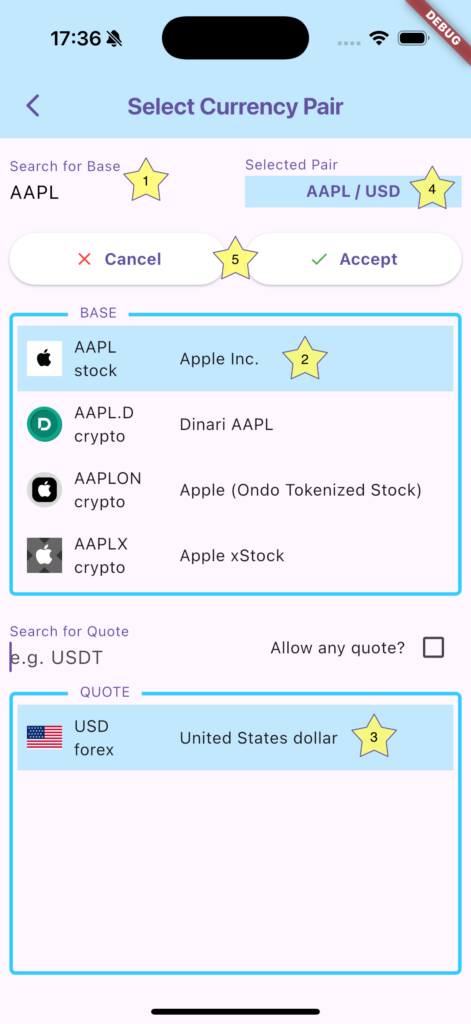
Selecting the Base Asset
The top half of the screen is dedicated to finding your target asset.
- Search Bar (1): Type the symbol (e.g., BTC, AAPL, EUR) to filter the list instantly.
- Auto-Discovery: If the symbol is not found locally, the app will briefly show a “Searching…” notification and attempt to download the live asset data from the cloud automatically.
- List View (2): Tap on any item in the search results to securely select it as your Base. Your selection will highlight in light blue.
Selecting the Quote Currency
The bottom half dictates what currency the Base asset should be measured against.
- Smart Filtering: By default, the Quote list will only populate with known, quote currencies for your chosen Base if the pair is available from a data provider.
- Quote Search Bar: Use this to rapidly filter a long list of available quotes (e.g., typing USDT or USD).
- Allow Any Quote Checkbox: If you can’t find the pairing you need, checking this box bypasses the compatibility filter and allows you to force a pairing against any recorded currency in the system. The price will get calculated by the server, which should work for most pairs (but not all). You could for example see what the price of AAPL in BTC by selecting the latter as quote currency!
Confirm Instrument
Once both a Base and a Quote are selected, you should see pair in the box at the top right (4). If you are happy with the selection, press confirm, and you will be taken to the Strategy Details Screen.