

This is the landing screen when you first start the app.
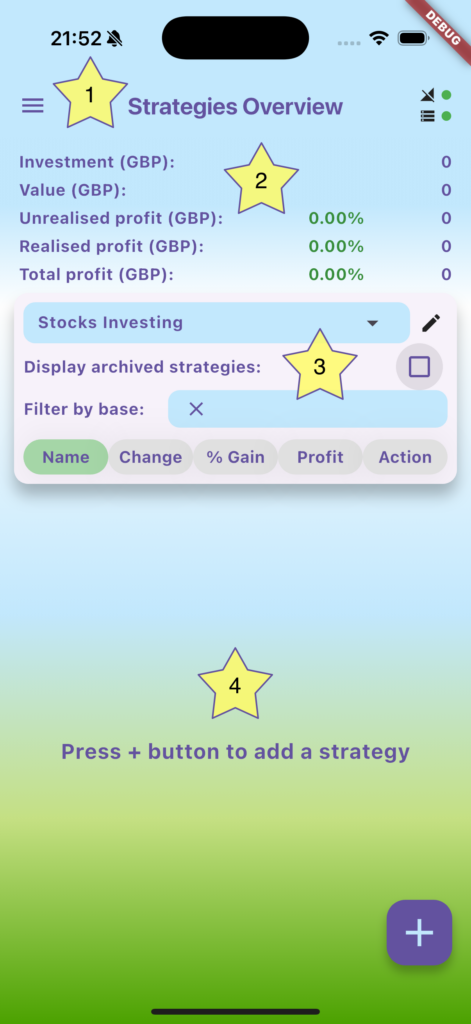
1) SIDE MENU
Import or export your portfolio, access the currency converter or trade calculator. Set your home currency. And if you want to take it to the next level, subscribe to Premium!
2) Investment statistics
This section shows you statistics about the strategies currently visible in the strategy cards section. All amounts are automatically converted into your home currency.
-
- ‘Investment’ shows the total amount of quote currency invested currently, converted into you home currency.
- “Value” is the current value of the assets.
- “Unrealised Profit” shows the current value of your assets minus what you spent to buy them.
- “Realised Profit” shows the the amount of your home currency gained from selling assets
3) Category Selection and Filters
You can assign categories for your strategies and filter them by category. An obvious example would be to create a category for “Stocks” and one for “Crypto”.
Once you have sold all assets from a strategy, it makes sense to ‘archive” it and take it out of your current list. The checkbox has three states – deselected, showing only currently active strategies, archived, but also both states (depicted by a horizontal line).
You can filter the currently displayed strategies by searching for them in the dropdown box. If you select an item from the box, only strategies matching exactly the selection will be shown. Otherwise, if you just start typing, it will show all items that start with your typed text.
Sorting buttons
All buttons can either sort ascending (button is green) or descending (button is red). You can sort by:
-
- Name
- Change -percent change in the last 24h. This is useful to see which assets are going up. currently
- % Gain – sorts by the assets that have had the biggest price increase
- Profit – sorts by total (realised and unrealised) profit
- Action – sorts by what strategy is closest to the next entry or take profit
4) Strategy Cards
This section will show the strategies for the selected filter above. To add a new one, press the (+) button in the bottom right corner, which will take you to the Pair Selection Screen.